Matrix Sport Lab Free Edition
Video action comparison, one step to precision
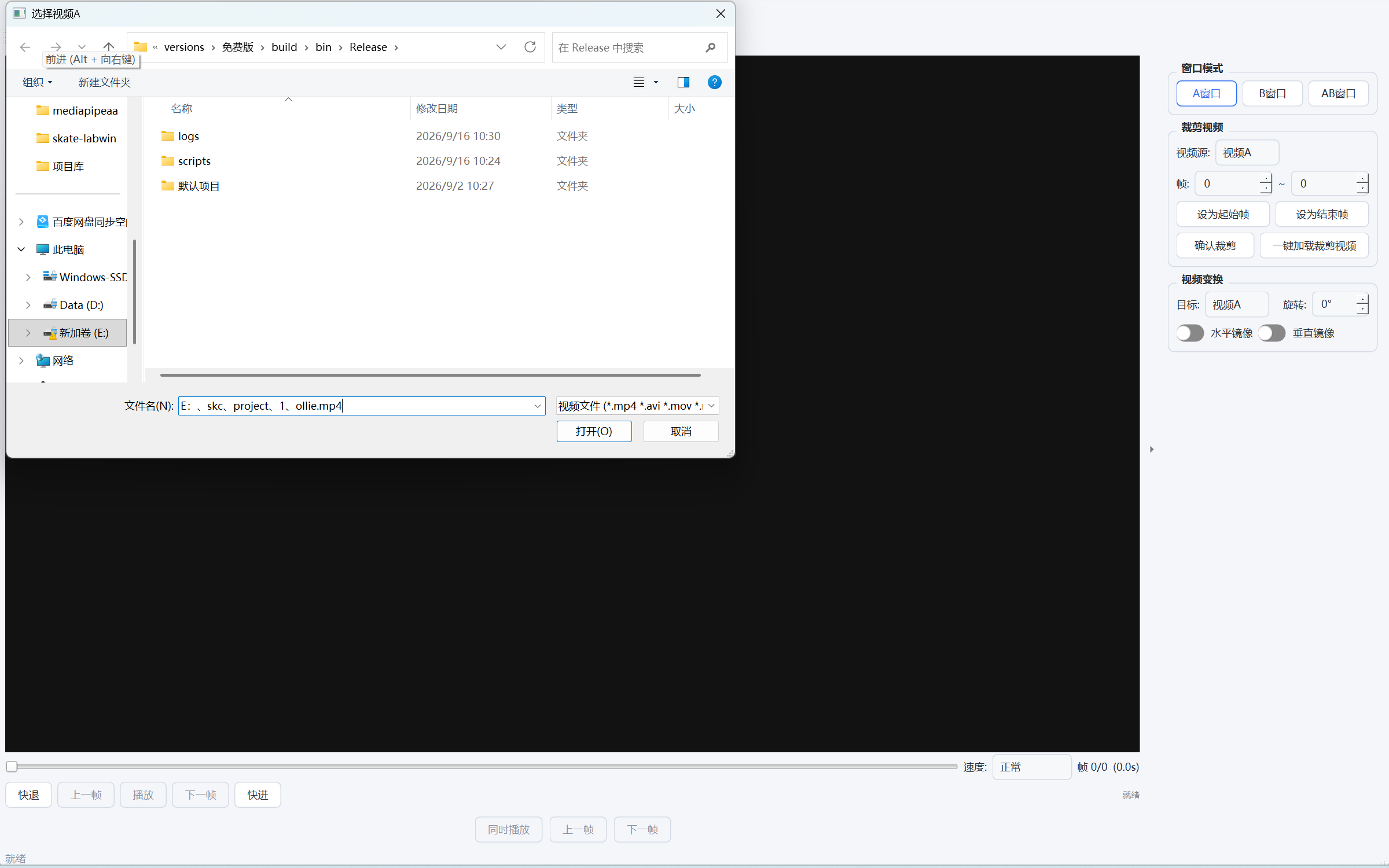
Want to see exactly where a student's move differs from the standard demo? Put the two videos side by side, play them slowly, and every tiny detail comes into focus. Totally free - no login, no membership, install and go. With just a coach's eye, the problem is clear at a glance and teaching gains direction instantly.
Core Features
- Single/dual window: watch one video, or put two side by side in sync for comparison
- Dual-video sync control: play/pause together and step forward/back together, perfectly aligned
- Pause-and-inspect: freeze and look at any instant, missing nothing
- Variable speed: from slow motion up to 2x, so the power process is easy to see
- Clip & export: cut out key moves to keep or share anytime
- Rotate & mirror: straighten any shooting angle, the original file stays untouched
- Comparison range: set each video's range independently, flexible and unobtrusive
- Theme skins: switch among blue, dark, vivid orange and fresh green anytime
Features · Illustrated Guide
Clear interface, zero learning cost
- Video area: shows the playing frame, supports window dragging / resizing
- Playback bar: play/pause, progress bar, and current time / total duration
- Toolbar: open video, dual-video mode, trim, mirror/rotate, speed control and other core features
Get started in three easy steps
Download & extract: download MatrixSportLab-Free-v2.0.0.zip and extract it anywhere.
Launch: double-click SkateLabApp.exe (or 启动.bat) in the folder.
Open a video: click "Open Video" in the toolbar and choose a common format such as MP4 / AVI / MOV to play.
Dual-video sync comparison: a great tool for teaching review
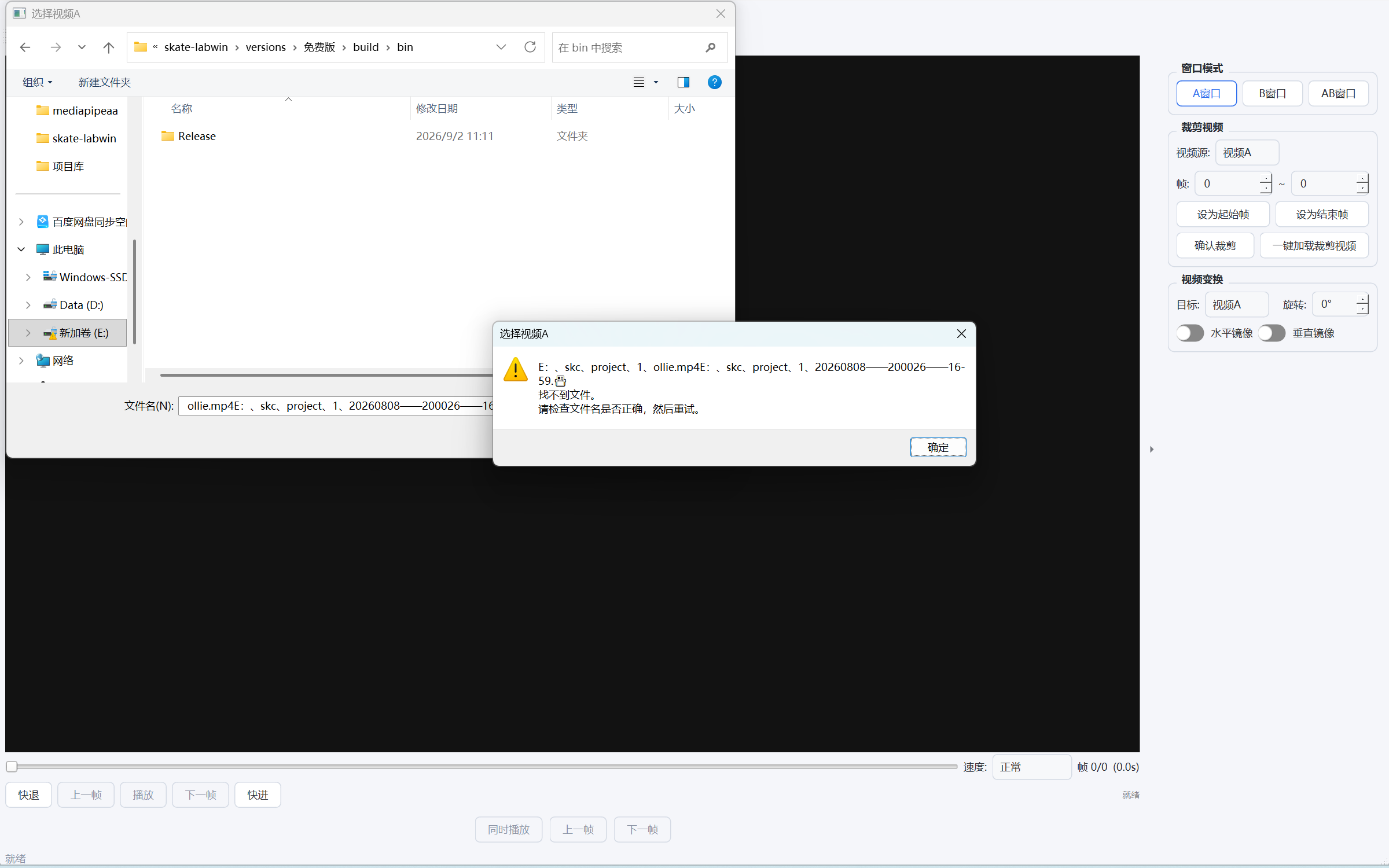
Enter dual-video: click the "Dual Video" button to split the window into two display areas.
Load two videos: click "Open Video" in each area, e.g. student action vs standard demo.
Sync playback: both stay frame-synced; dragging one seeks the other.
Moment-by-moment compare: pause and replay bit by bit to inspect the differences at every instant.
视频裁剪:提取关键动作片段
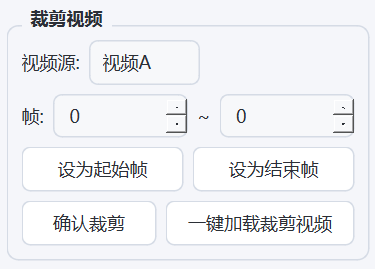
设置起点:播放到需要截取的开始位置,点击「设置裁剪起点」。
设置终点:播放到结束位置,点击「设置裁剪终点」。
导出片段:点击「裁剪导出」,选择保存路径,即可生成指定区间的视频片段。
窗口与显示:三种模式自由切换
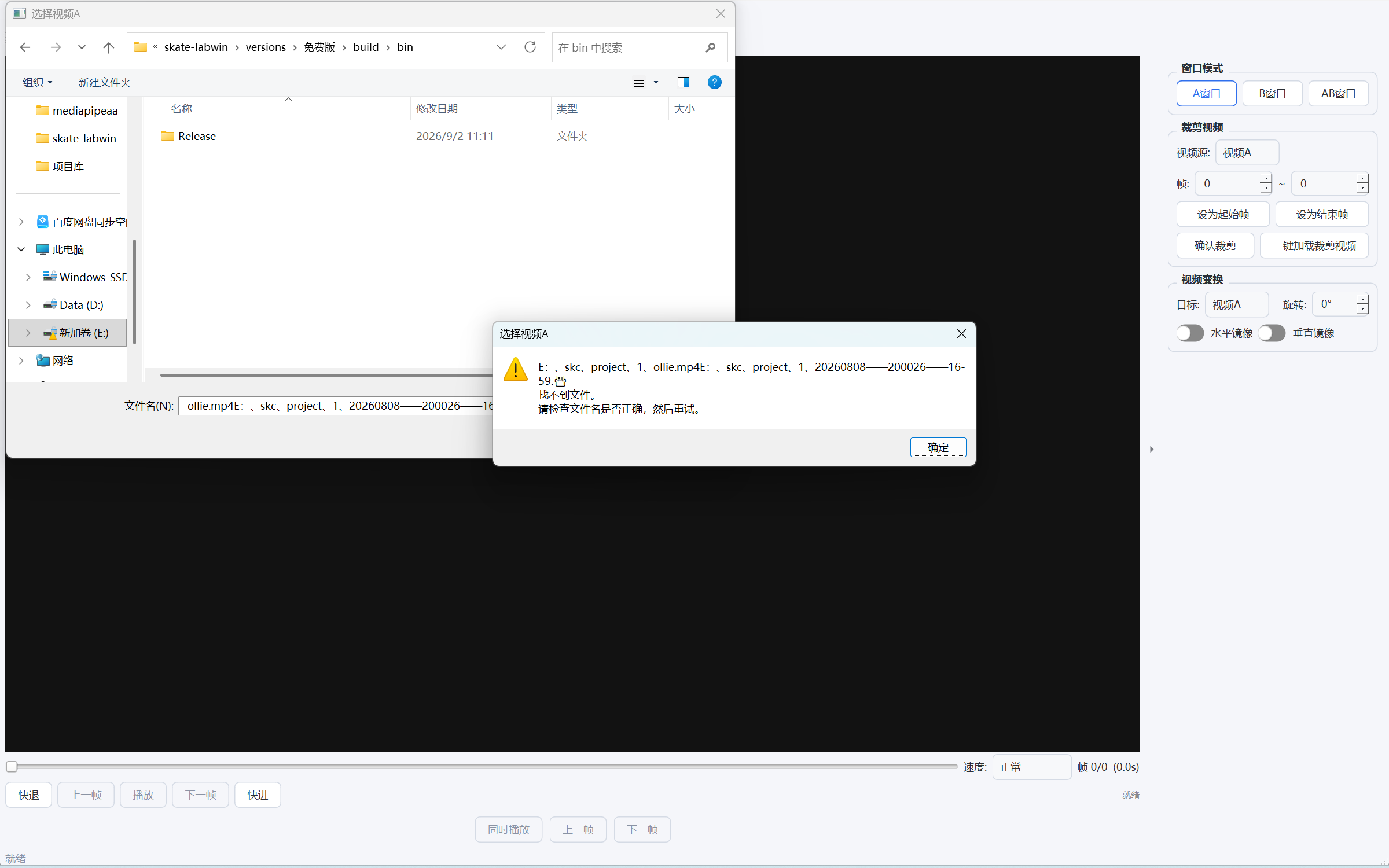
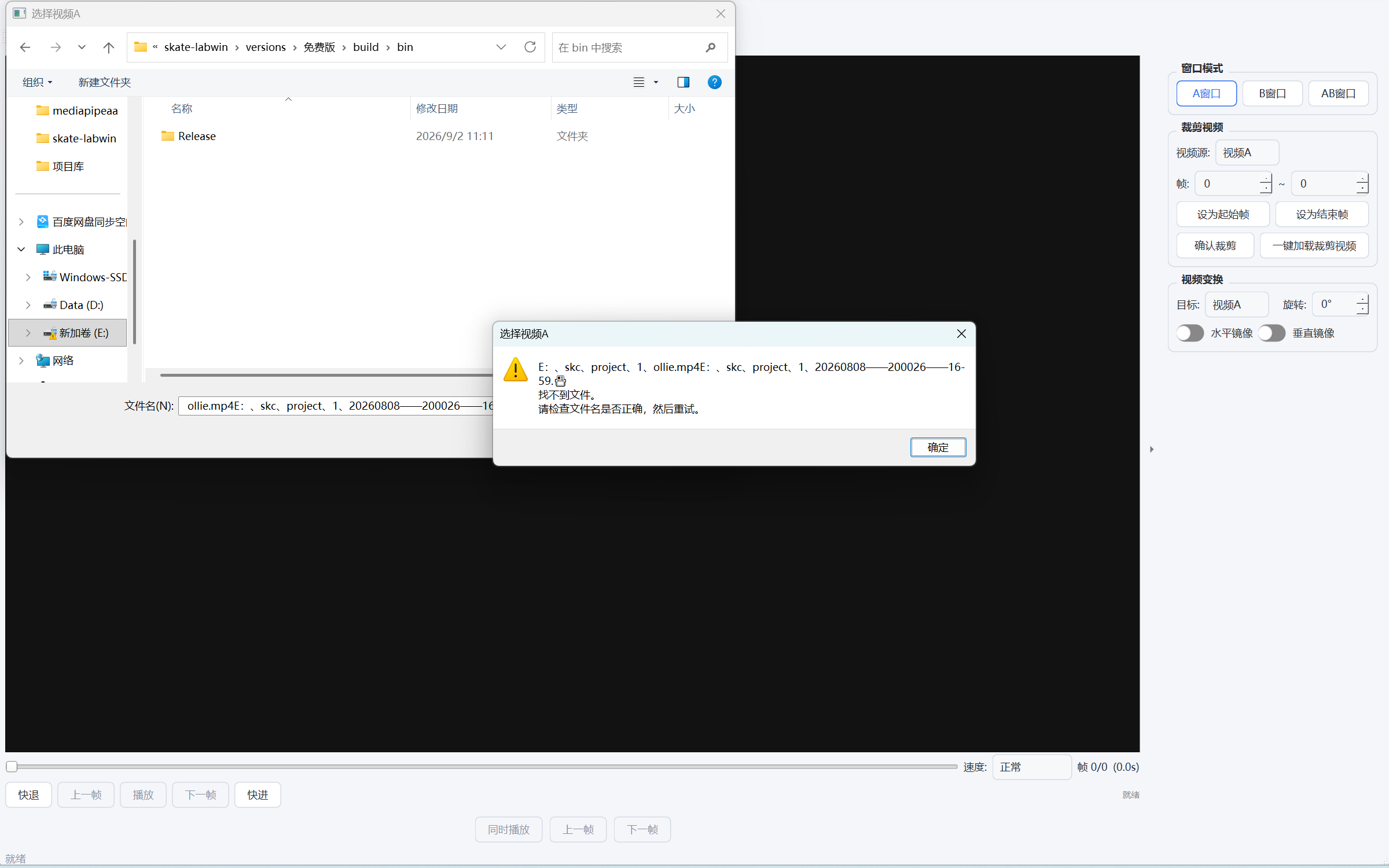
- 单视频 A / B:独立窗口分别回看两路视频,互不干扰
- AB 双视频:并排同步对比,三种模式一键切换
- 同时播放:双视频模式下两路完全同步,切换单窗口可独立回看任一路
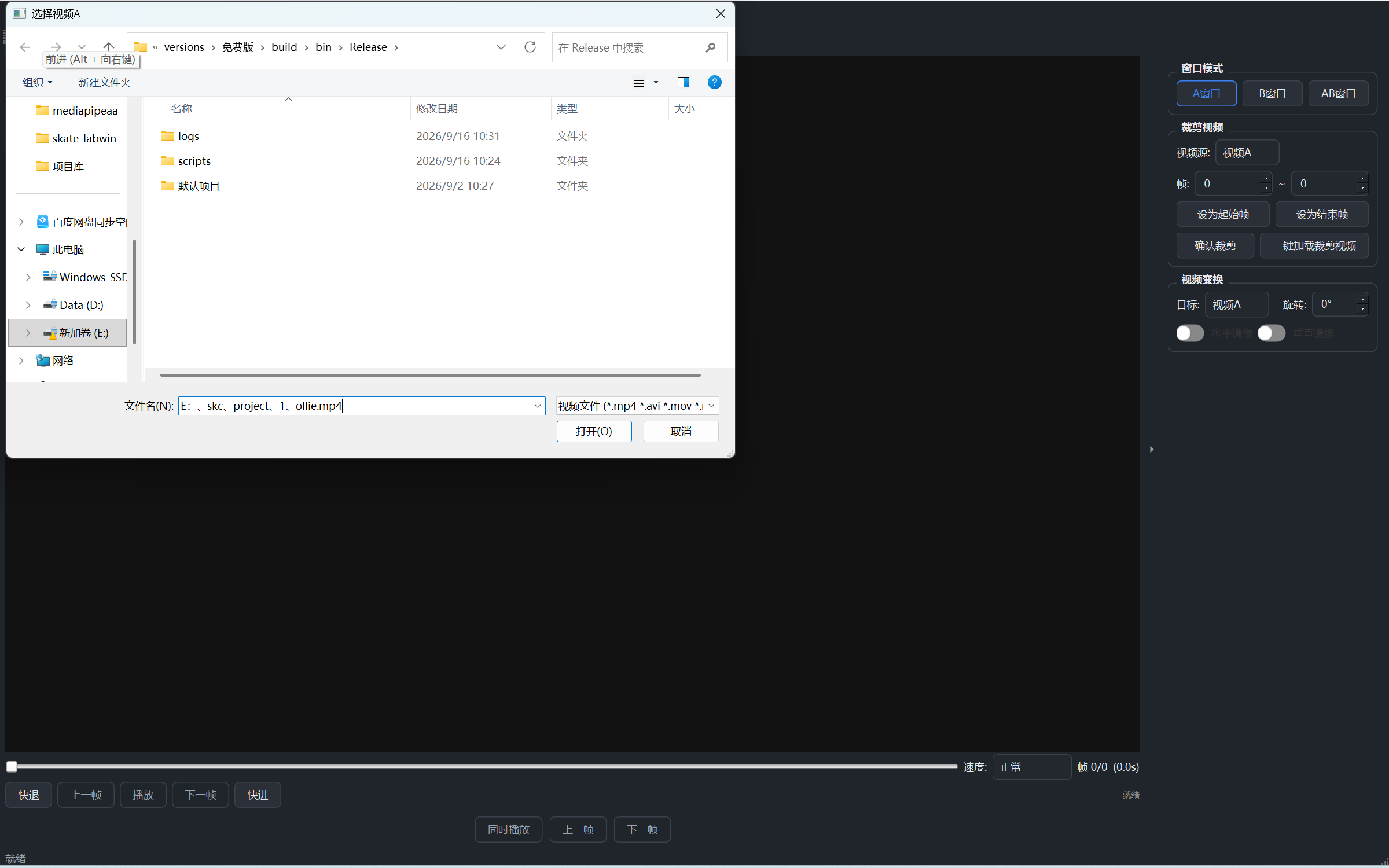
深色皮肤,夜间教学更护眼
High-frequency teaching tips
- Slow playback: set any speed up to 2x and watch the power process in fine detail
- Moment-by-moment replay: pause and replay to see every takeoff, airborne and landing pose
- Video trim: set a start/end range to export clips and save or share key moves
- Mirror / Rotate: flip the image to compare symmetrical moves from the same direction; the source file is unchanged
- 界面皮肤:蓝、深色、活力橙、清新绿主题随意切换