Matrix Sport Lab Free Edition
Video action comparison, one step to precision
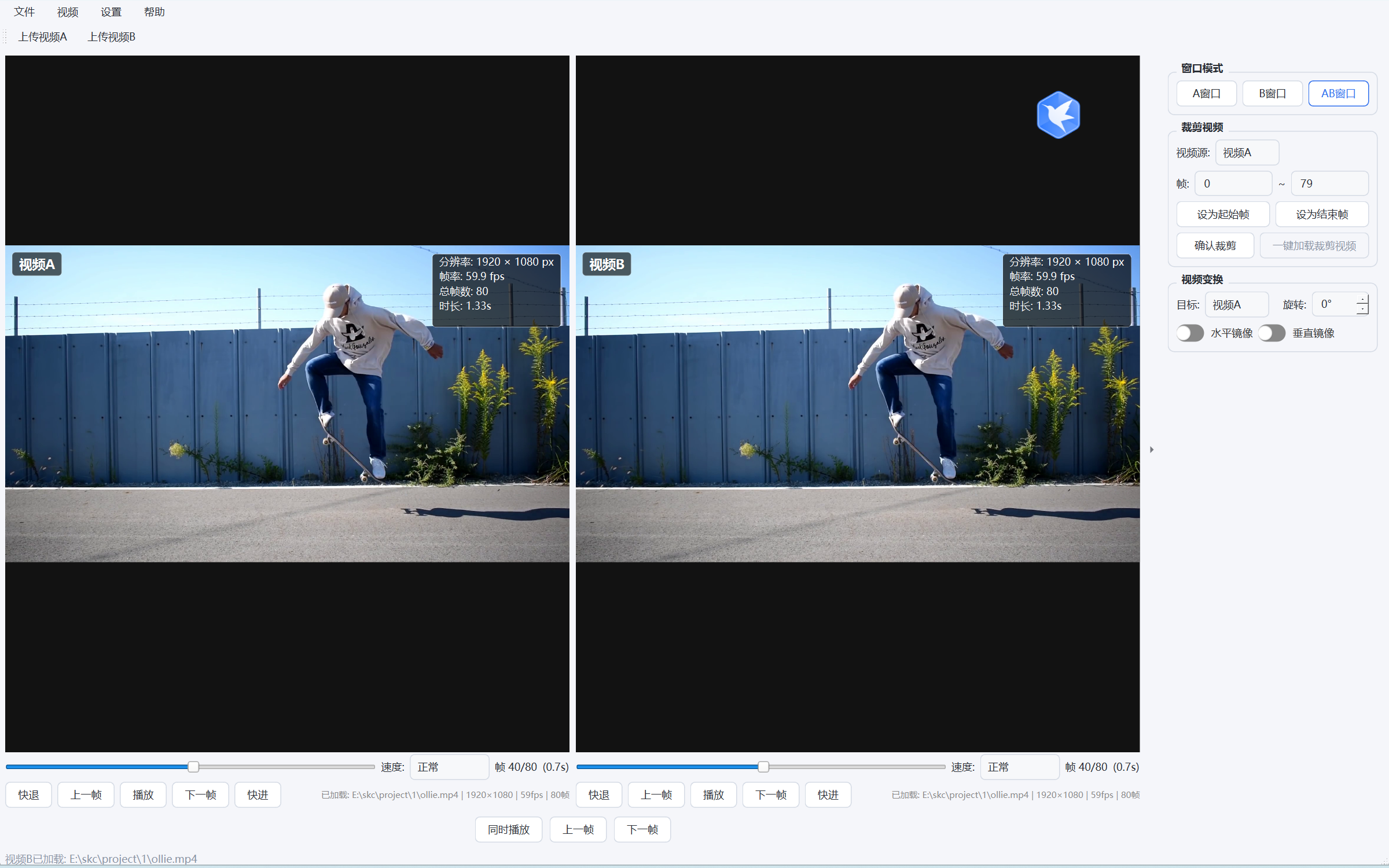
Want to see exactly where a student's move differs from the standard demo? Put the two videos side by side, play them slowly, and every tiny detail comes into focus. Totally free - no login, no membership, install and go. With just a coach's eye, the problem is clear at a glance and teaching gains direction instantly.
Core Features
- Single/dual window: watch one video, or put two side by side in sync for comparison
- Dual-video sync control: play/pause together and step forward/back together, perfectly aligned
- Pause-and-inspect: freeze and look at any instant, missing nothing
- Variable speed: from slow motion up to 2x, so the power process is easy to see
- Video player: plays many formats smoothly, MP4 / AVI / MOV open and play directly
- Image viewer: open JPG / PNG / BMP images directly, freeze a single frame to see detail
- Clip & export: cut out key moves to keep or share anytime
- Rotate & mirror: straighten any shooting angle, the original file stays untouched
- Comparison range: set each video's range independently, flexible and unobtrusive
- Theme skins: switch among blue, dark, vivid orange and fresh green anytime
- Feature scope: AI action recognition, ruler & guides and other advanced features are membership features of the Universal Edition and not included in the Free Edition
Features · Illustrated Guide
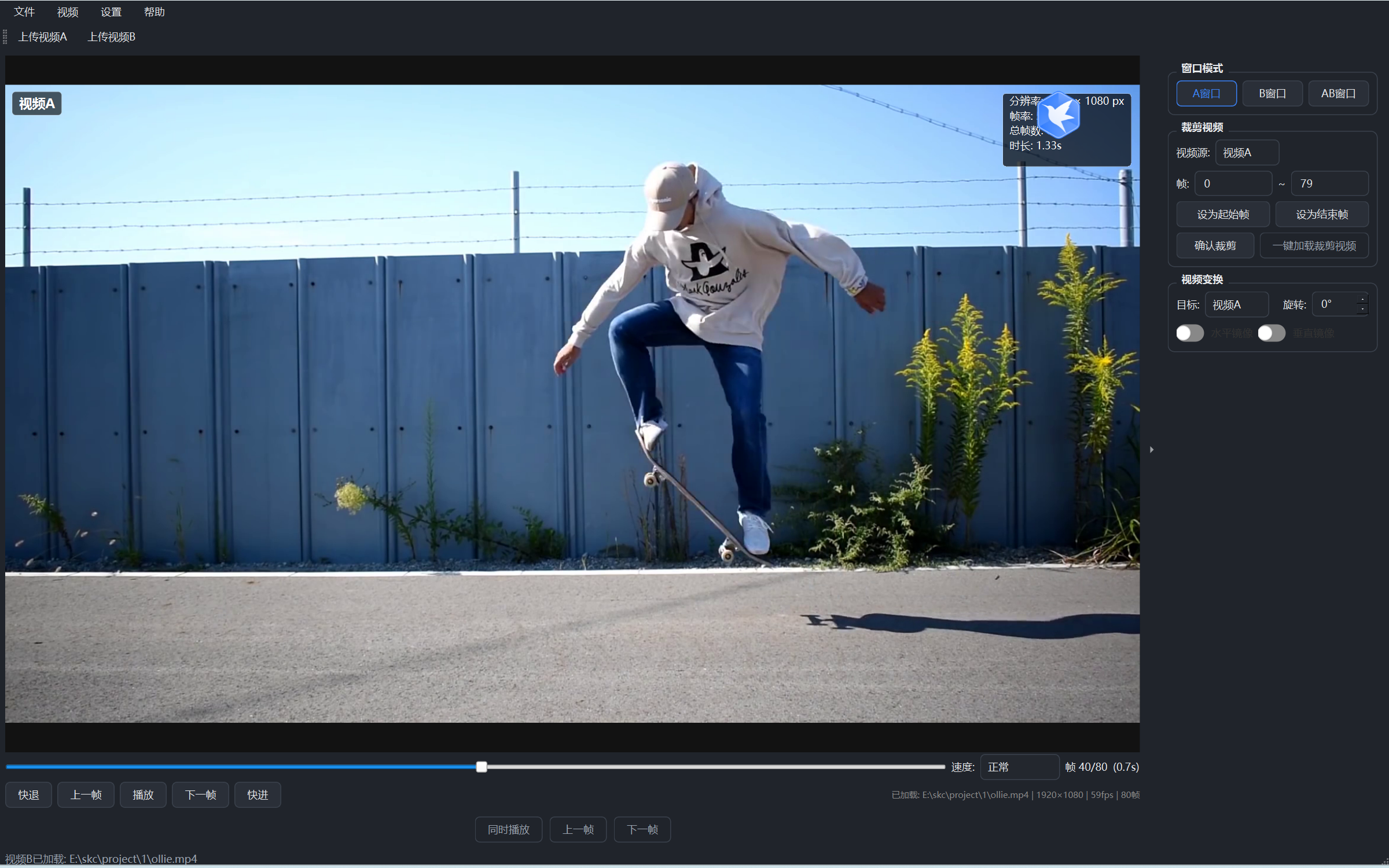
Clear interface, zero learning cost
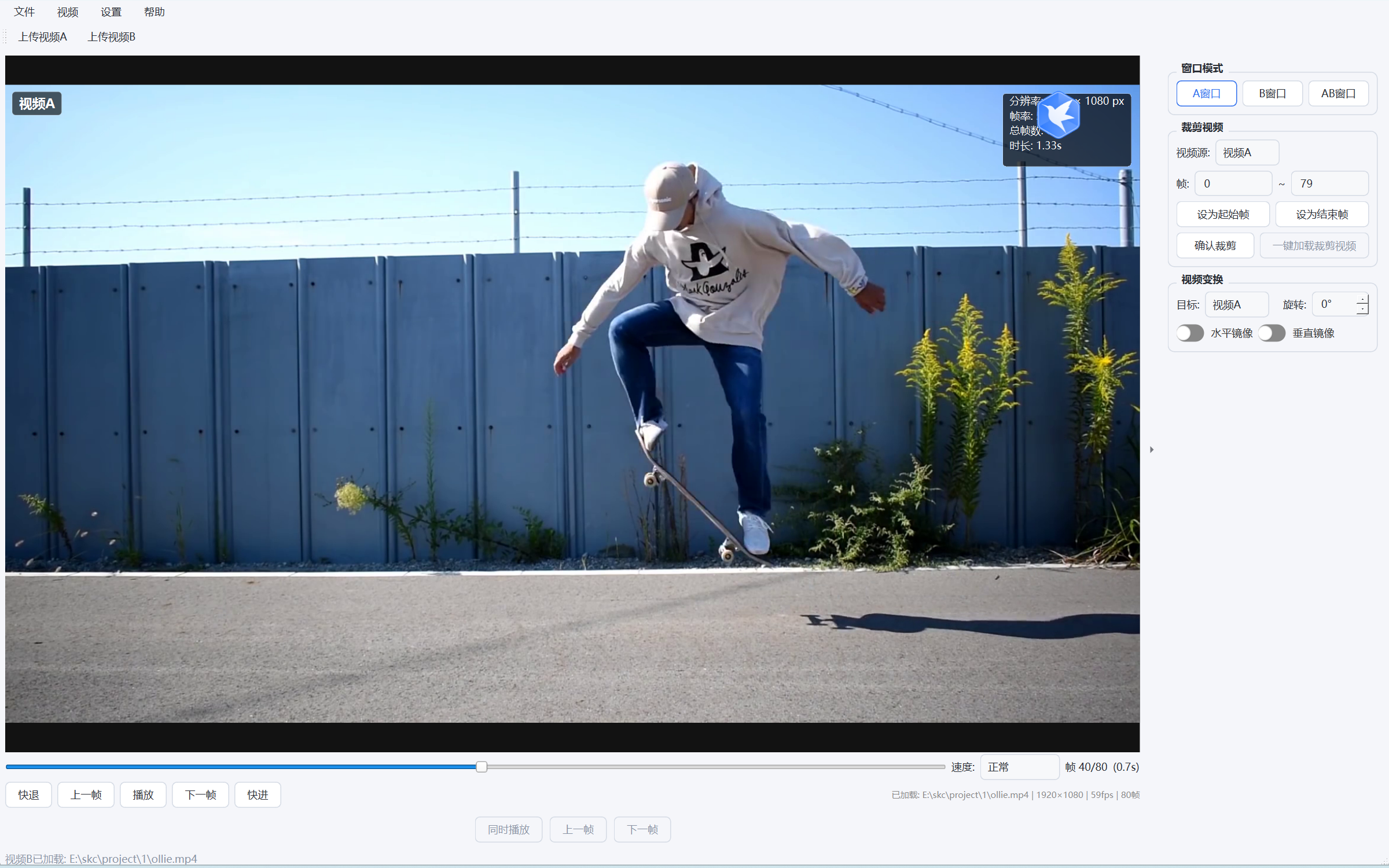
- Video area: shows the current frame; the window can be freely resized
- Playback bar: play/pause, progress bar, speed control, and frame / duration display
- Right control panel: three groups - window mode, trim video, video transform
① Single / Dual Window: one window for one video, two windows for comparison
- One window, one video: a single video fills one window - larger and more focused
- Two windows, comparison: two videos side by side in sync to compare differences
- Three modes: switch between A window / B window / AB window in one click
② Dual-video Sync Control: two videos perfectly aligned
Enter dual-video: click "AB Window" on the right to split the window into two display areas.
Load two videos: click "Upload Video A / Upload Video B" in each area, e.g. student action vs standard demo.
Sync playback: tick "Play Together" at the bottom; both stay frame-synced, and dragging one seeks the other.
③ Moment-by-moment Inspection: miss no instant

- Frame stepping: use "Previous / Next Frame" to inspect action details frame by frame
- Rewind / forward: jump several frames at once to locate key moves quickly
- Frame & time: shows the current frame number and elapsed time in real time
④ Variable Speed Playback: tune the speed as you like
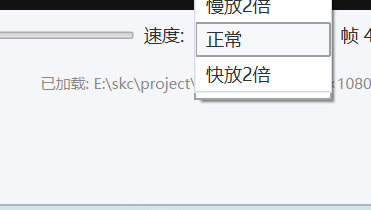
- Six speed levels: slow 20 / 10 / 5 / 2, normal, fast 2x
- Slow it down: slow the power process to see key details clearly
- Switch anytime: adjust speed during playback without losing your position
⑤ Video Player: smooth multi-format playback
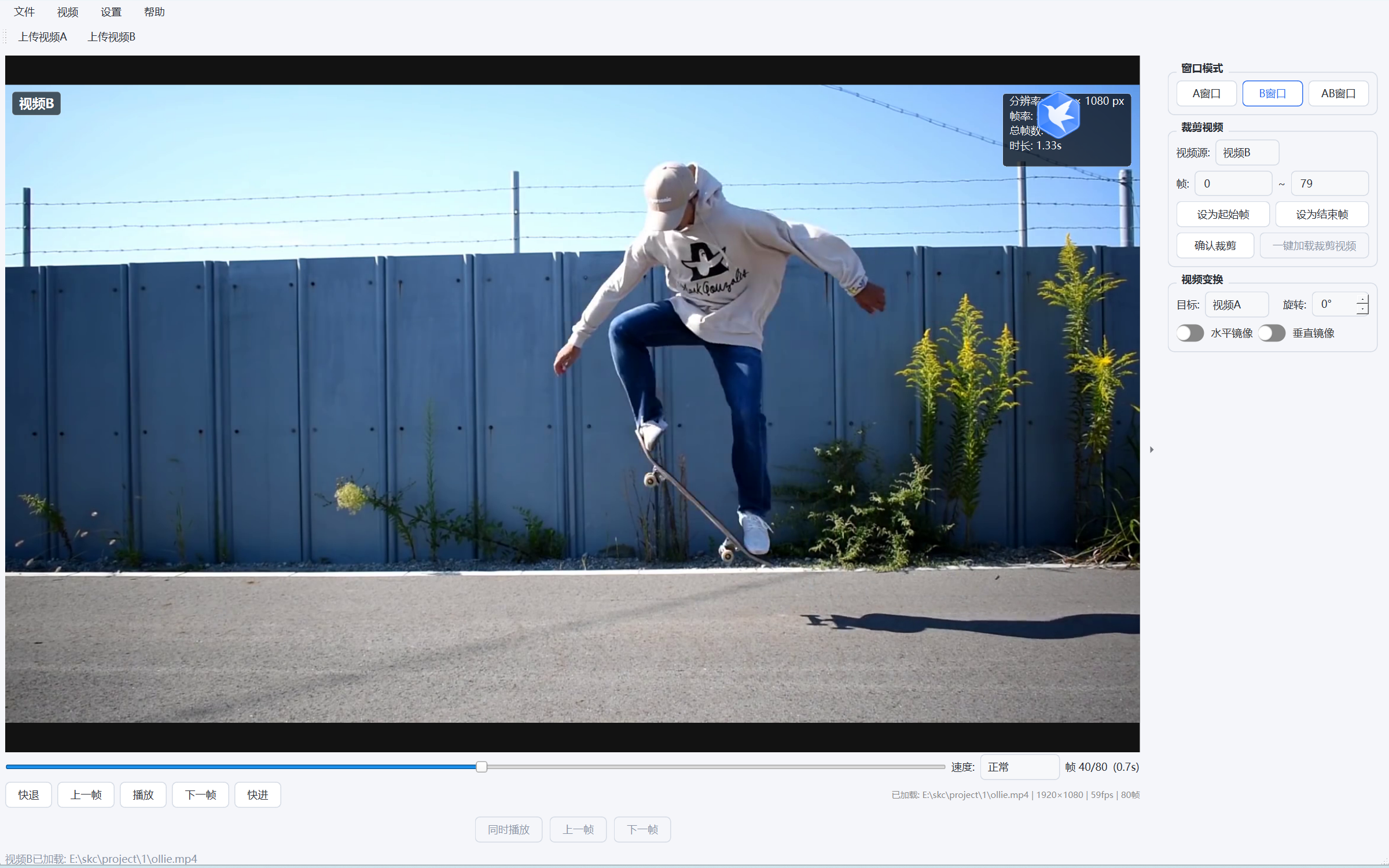
- Many formats: MP4 / AVI / MOV and more open and play directly
- Speed control: slow motion and frame-by-frame replay to see key movements clearly
- Position control: drag the progress bar or step frames to locate any instant quickly
⑥ Image Viewer: freeze a single frame for a clear look
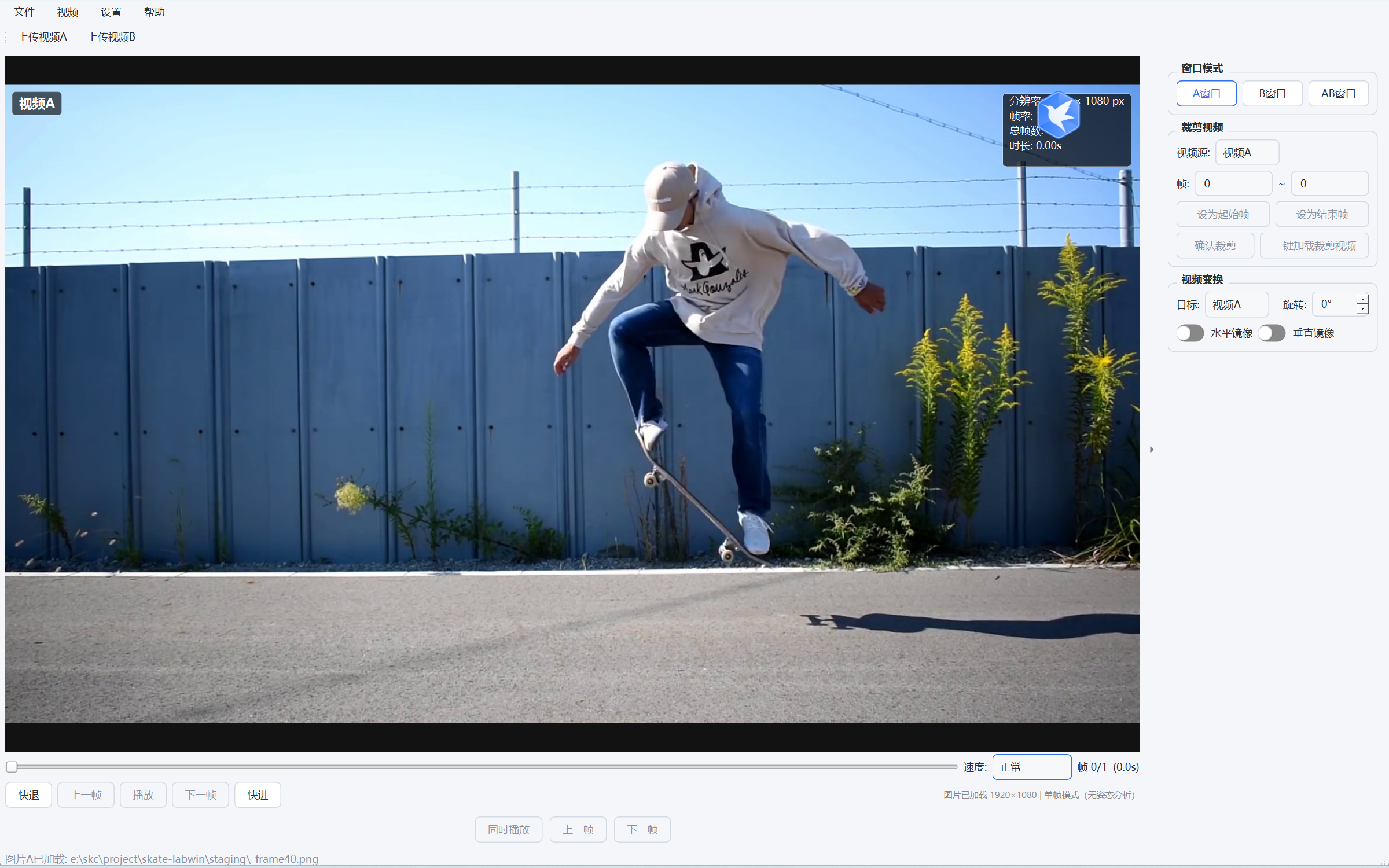
- Direct viewing: import and view JPG / PNG / BMP images directly
- Frame freeze: bring in a key-action screenshot and zoom in on the details
- Video / image comparison: pair with the video window to compare an image and a video side by side
⑦ Clip Trimming: extract key action clips
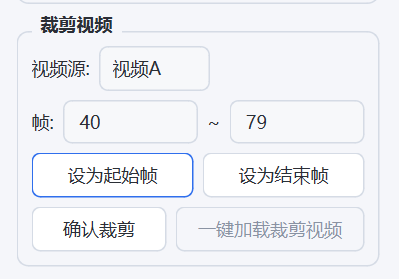
Set start frame: play to the start position, then click "Set Start Frame".
Set end frame: play to the end position, then click "Set End Frame".
Confirm trim: click "Confirm Trim" and pick a save path to export the clip of that range.
⑧ Picture Adjustment: rotate and mirror to straighten the view
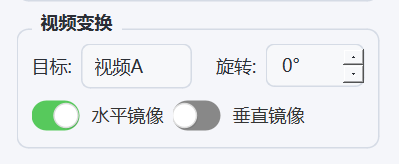
- Rotation: rotate 0 / 90 / 180 / 270° to straighten any shooting angle
- Horizontal mirror: flip left/right in one click to compare symmetrical moves from the same direction
- Source untouched: only the display changes; the original video stays the same
⑨ Comparison Range: independent ranges for A and B
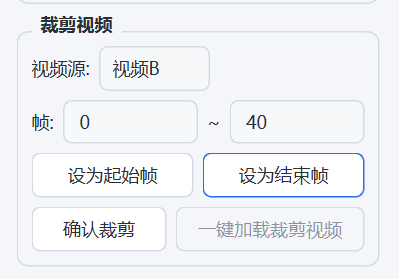
Pick a source: choose Video A or Video B in the "Video Source" dropdown.
Set ranges separately: give A and B their own start/end ranges - flexible and independent.
Load the range: click "Load Trimmed Video in One Click" to load the chosen range and focus on the key clip.
⑩ Interface Skins: four themes to switch freely
- Four skins: default blue, dark black, vivid orange, fresh green
- Instant effect: switch in one click via the "Settings → Skin" menu
- Auto-remembered: saved automatically and reused on next launch
Recommended System Requirements
The Free edition has no AI action recognition and only plays and compares videos; the table above is a conservative spec shared with the Universal Edition, so it runs comfortably below it.
| Item | Minimum (runs) | Recommended (smooth) | Best (large media / multitasking) |
|---|---|---|---|
| Operating system | Windows 10 version 1809 or later (64-bit) | Windows 10 22H2 / Windows 11 (64-bit) | Windows 11 (64-bit) |
| CPU (Intel / AMD) | Intel Core i3-6100 / i3-8100;AMD Athlon 200GE / Ryzen 3 1200 | Intel Core i5-10400 / i5-12400;AMD Ryzen 5 3600 / 5600 | Intel Core i7-12700 / i7-13700;AMD Ryzen 7 5800X / 7700X |
| Memory | 4 GB | 8 GB (16 GB advised) | 32 GB |
| Storage | 1 GB free (HDD is fine) | SSD, 2 GB free | NVMe SSD, 4 GB+ free |
| Graphics (integrated / discrete) | Integrated graphics is enough (HD 530 / UHD 630) | Iris Xe / UHD 770 (optional GTX 1650 / RX 6400) | RTX 4060 / RX 7600 / Arc B580 |
| Display resolution | 1280×800 | 1920×1080 | 2560×1440 or dual monitors |
| Video footage | 1080p30 H.264 | 1080p60 H.264 | 4K30 H.264 |
Usage Constraints
- Windows 10 (version 1809 or later) / Windows 11 64-bit only; Windows 7/8, 32-bit systems and Windows on ARM are not supported.
- 4 GB is the single-task minimum; for synchronized two-video analysis, 8 GB+ is advised (16 GB recommended).
- 4K and H.265 footage plays, but decoding and memory costs rise significantly; frame-accurate seeking in long-GOP H.265 may be slightly off.
- Installed size is about 0.5-0.7 GB; trimming and exporting create extra video files, so leave additional disk space.